Collection
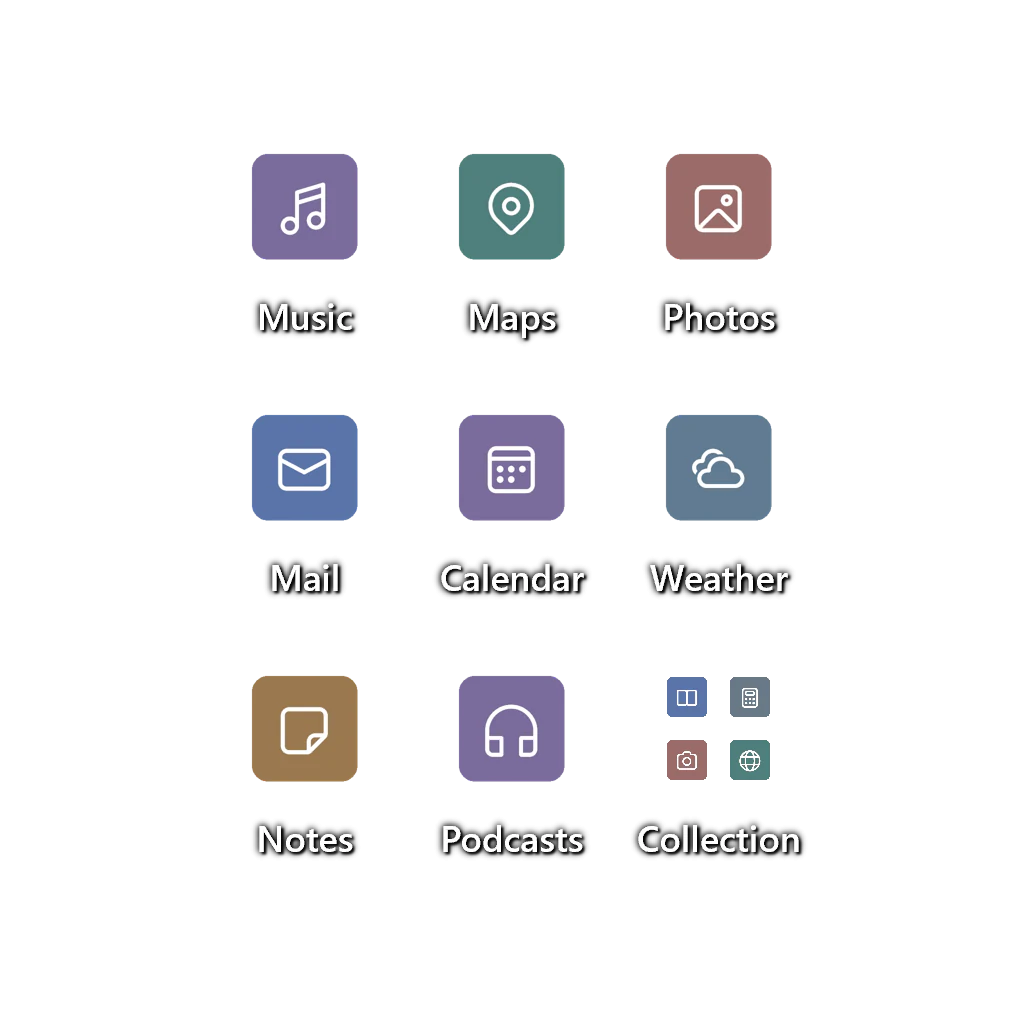
Store apps and shortcuts in a resizable container, then freely drag, sort, and rename them.
For Windows 10 and 11
Organize files and apps, create a workspace for every monitor, reach what you need from a flexible dock, and add extensible widgets to your desktop.
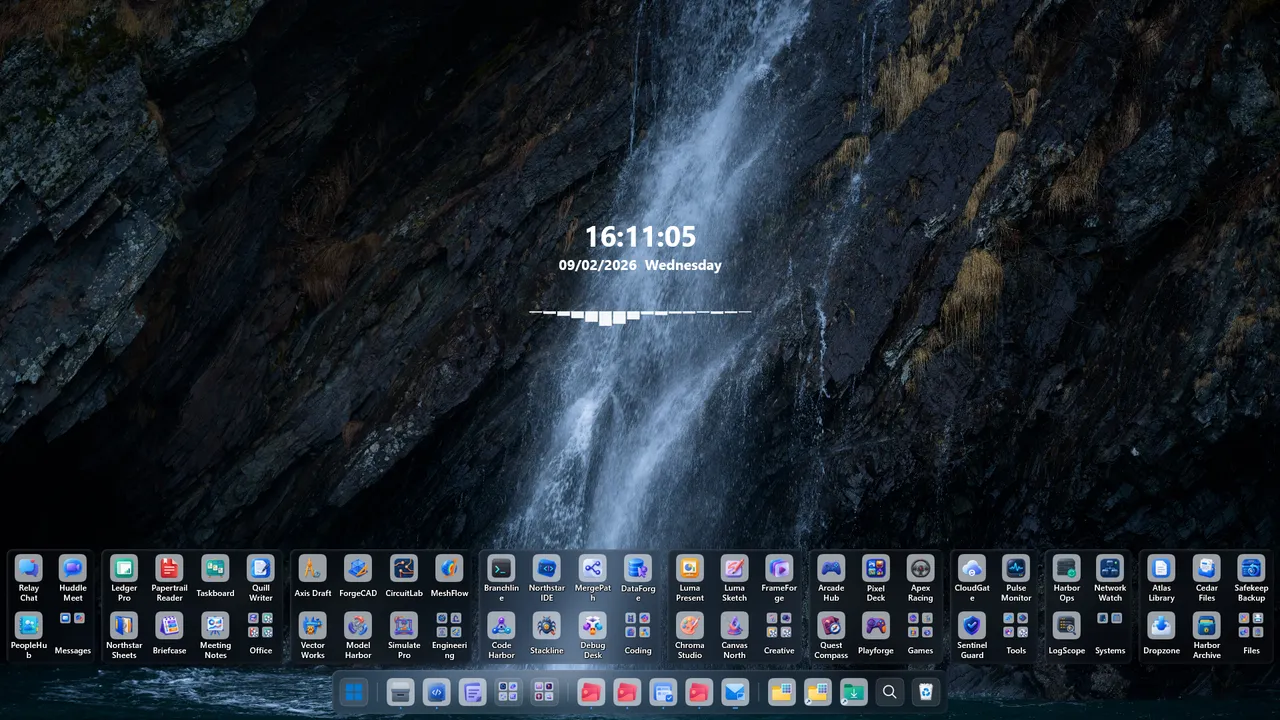
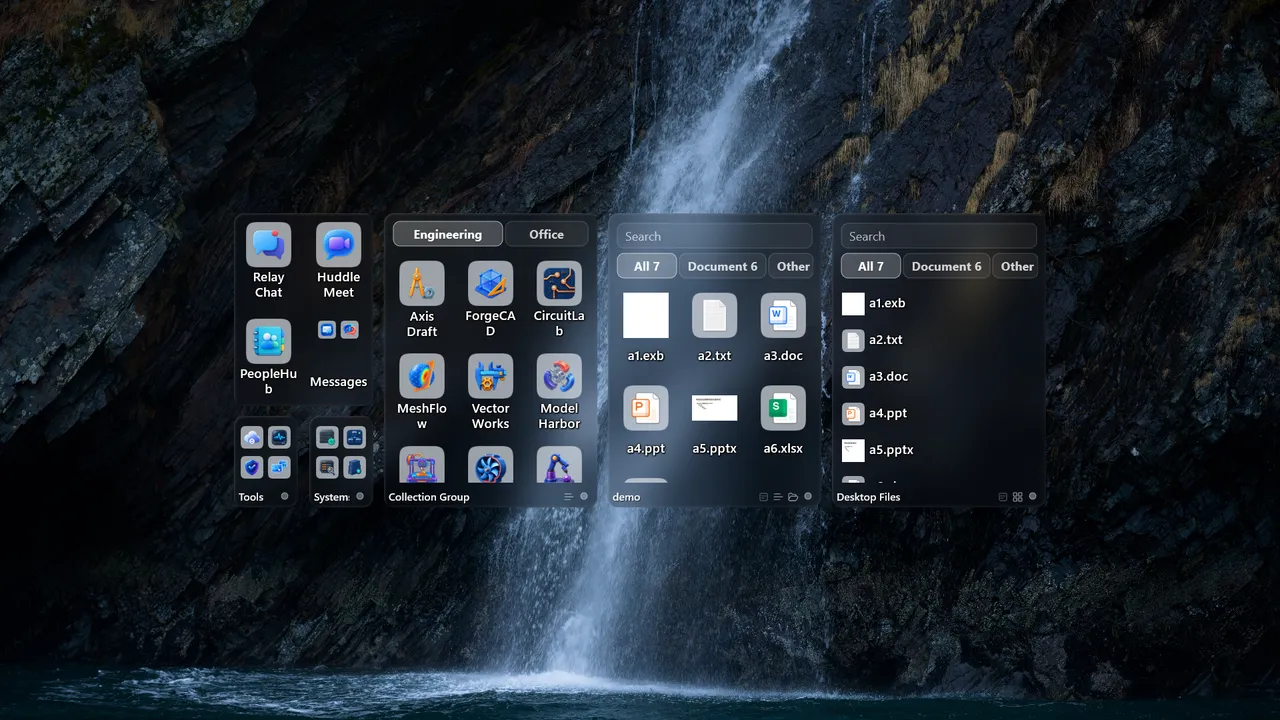
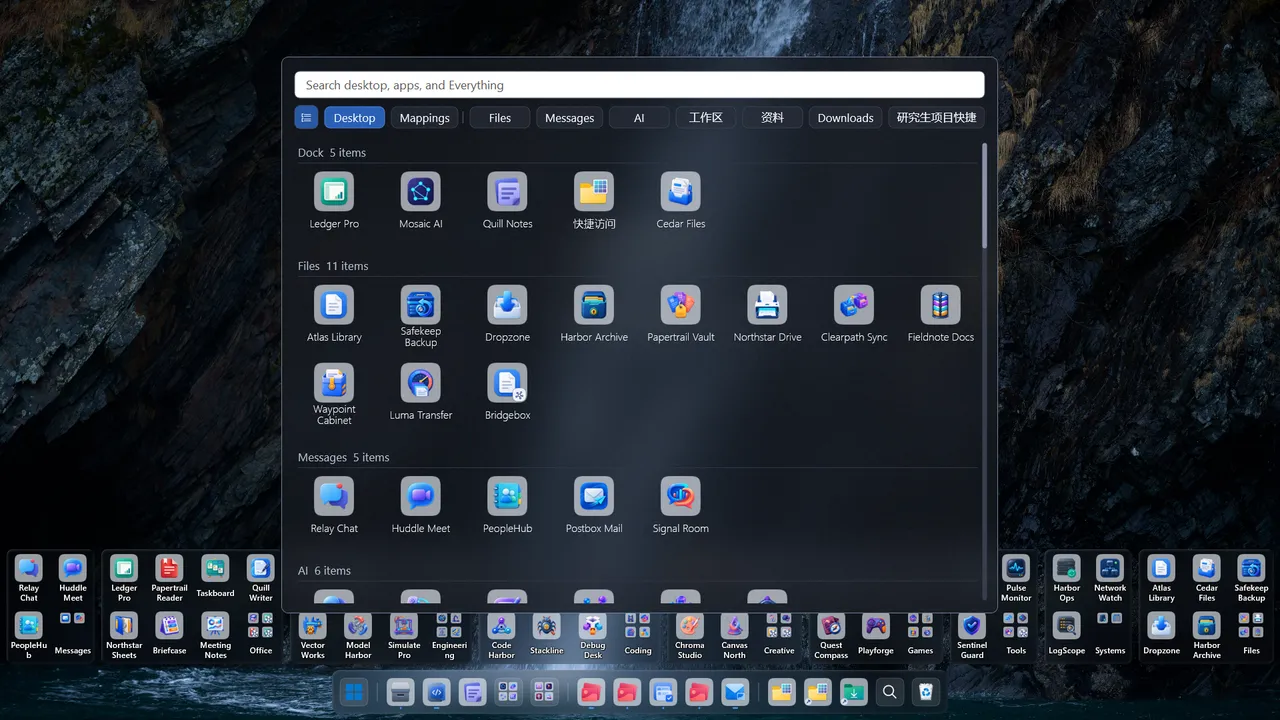
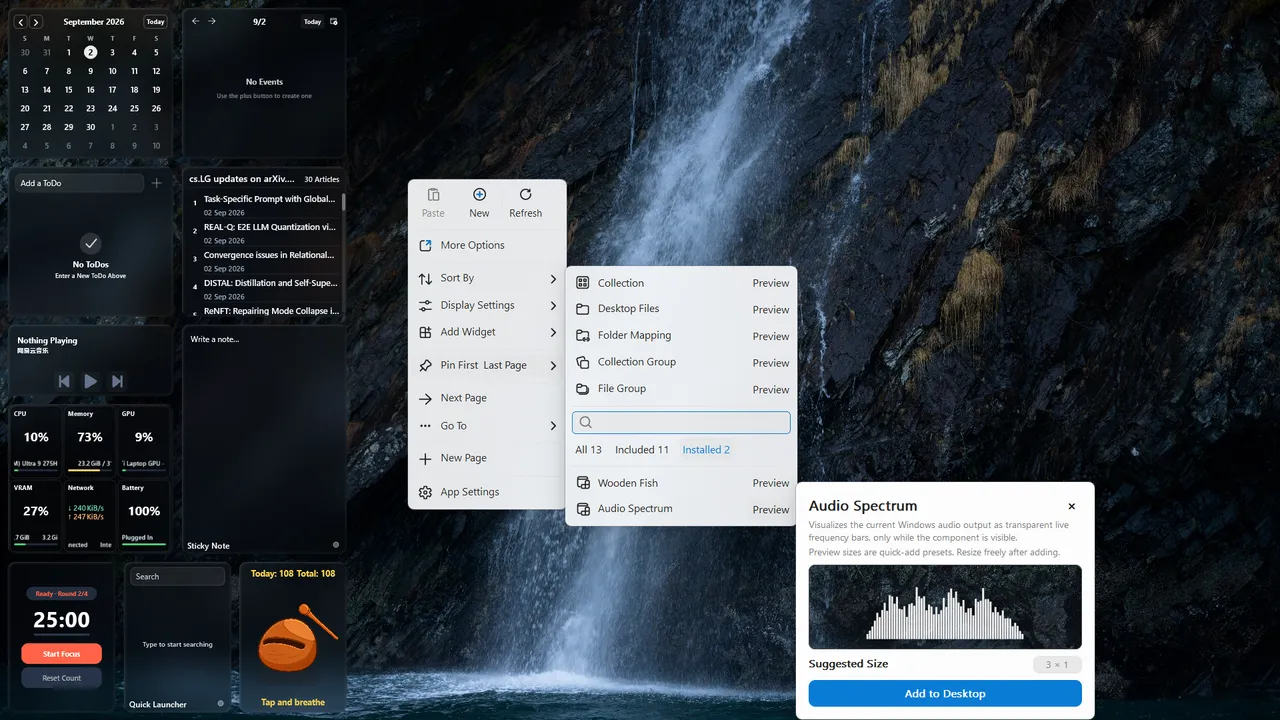
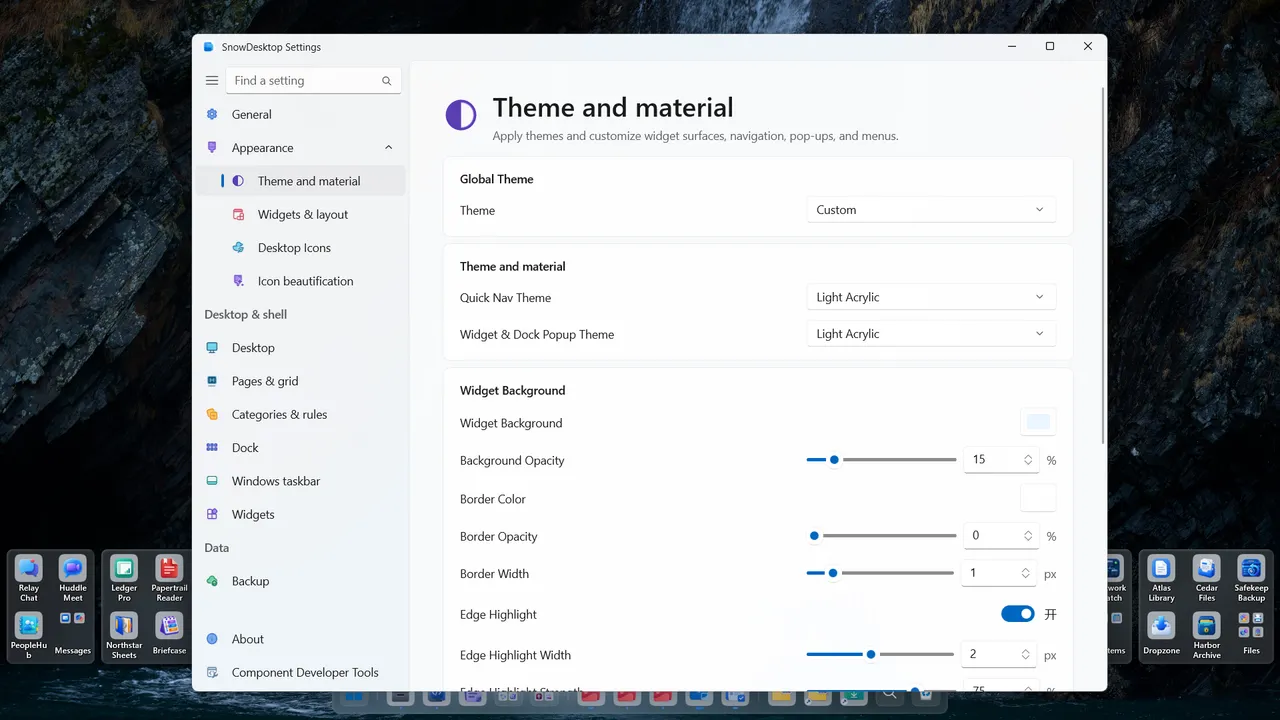
Store apps and shortcuts in a resizable container, then freely drag, sort, and rename them.
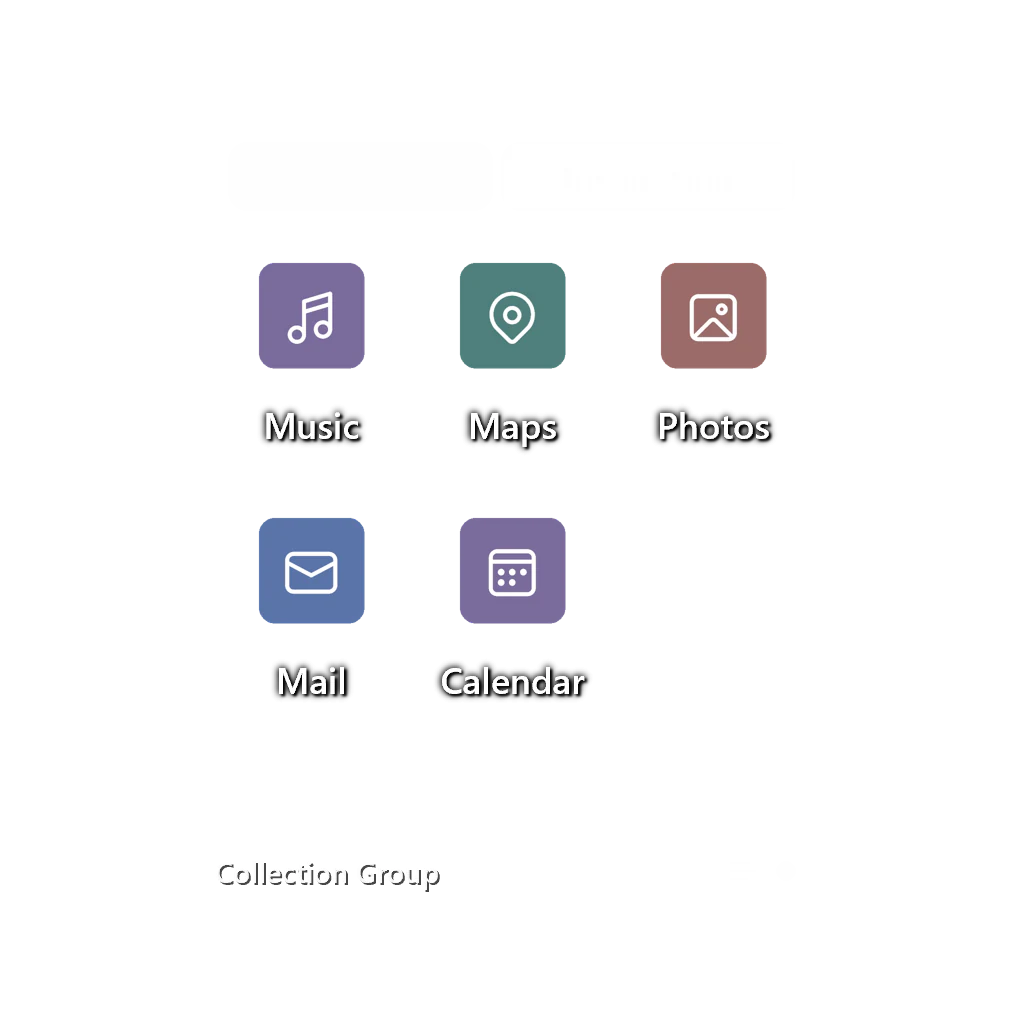
Place multiple collections in a tabbed component and switch between workspaces without using more desktop space.
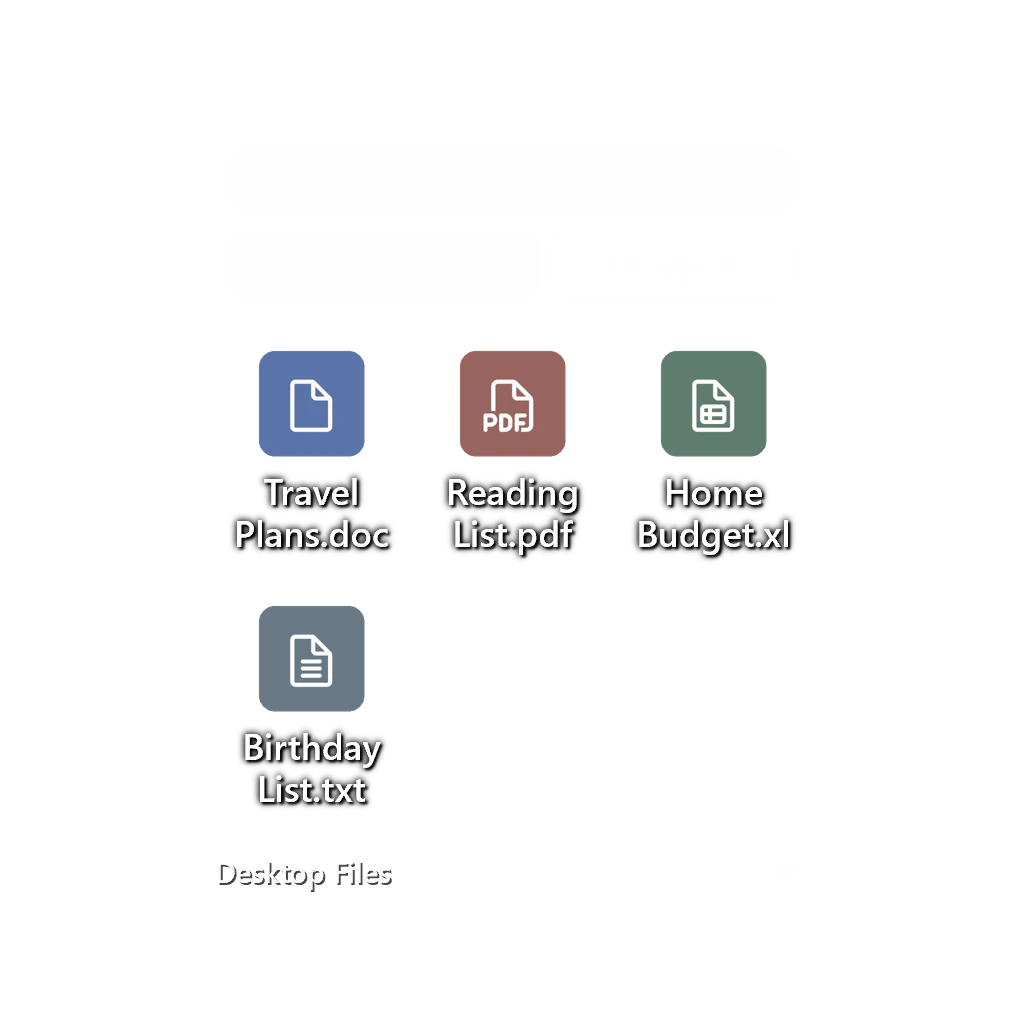
Automatically organize desktop content by file type, with search, sorting, date grouping, list view, and icon view.
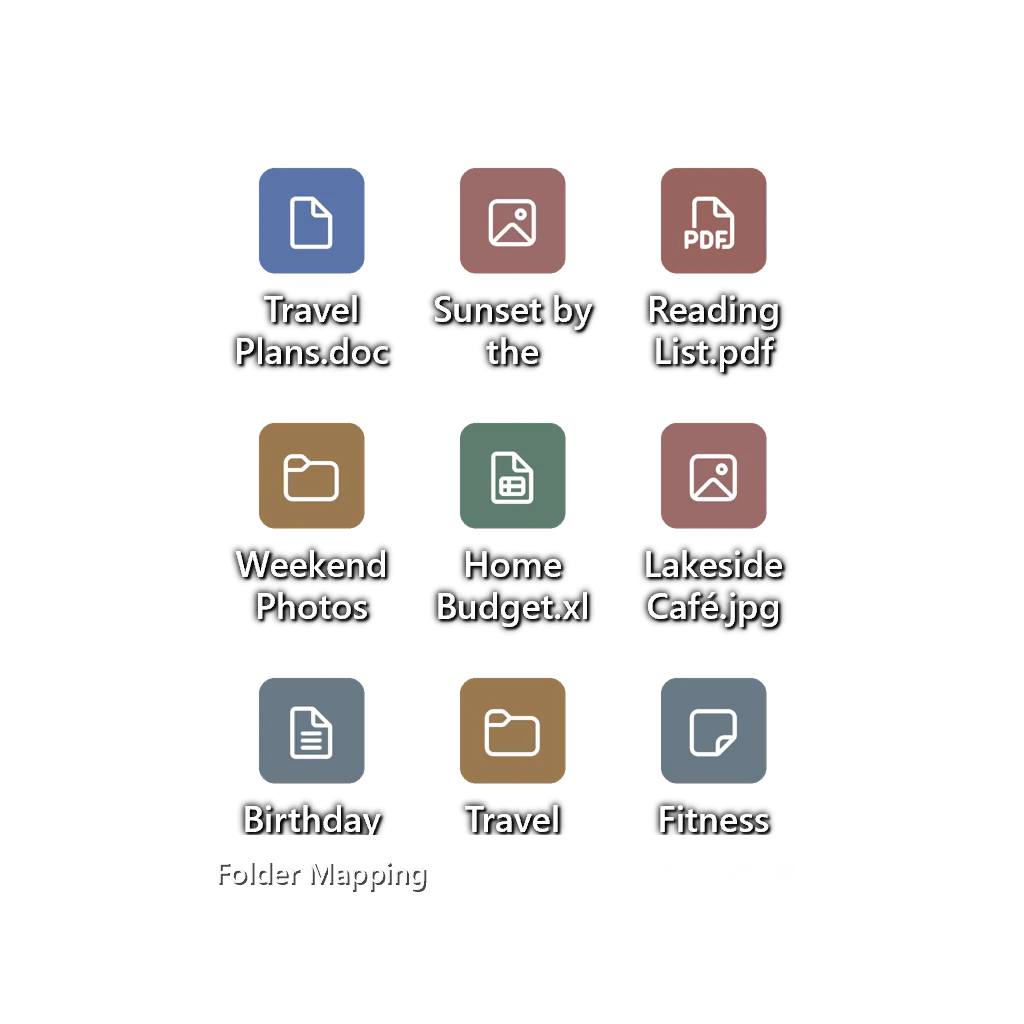
Show any folder directly on the desktop and browse or manage it without moving the original files.
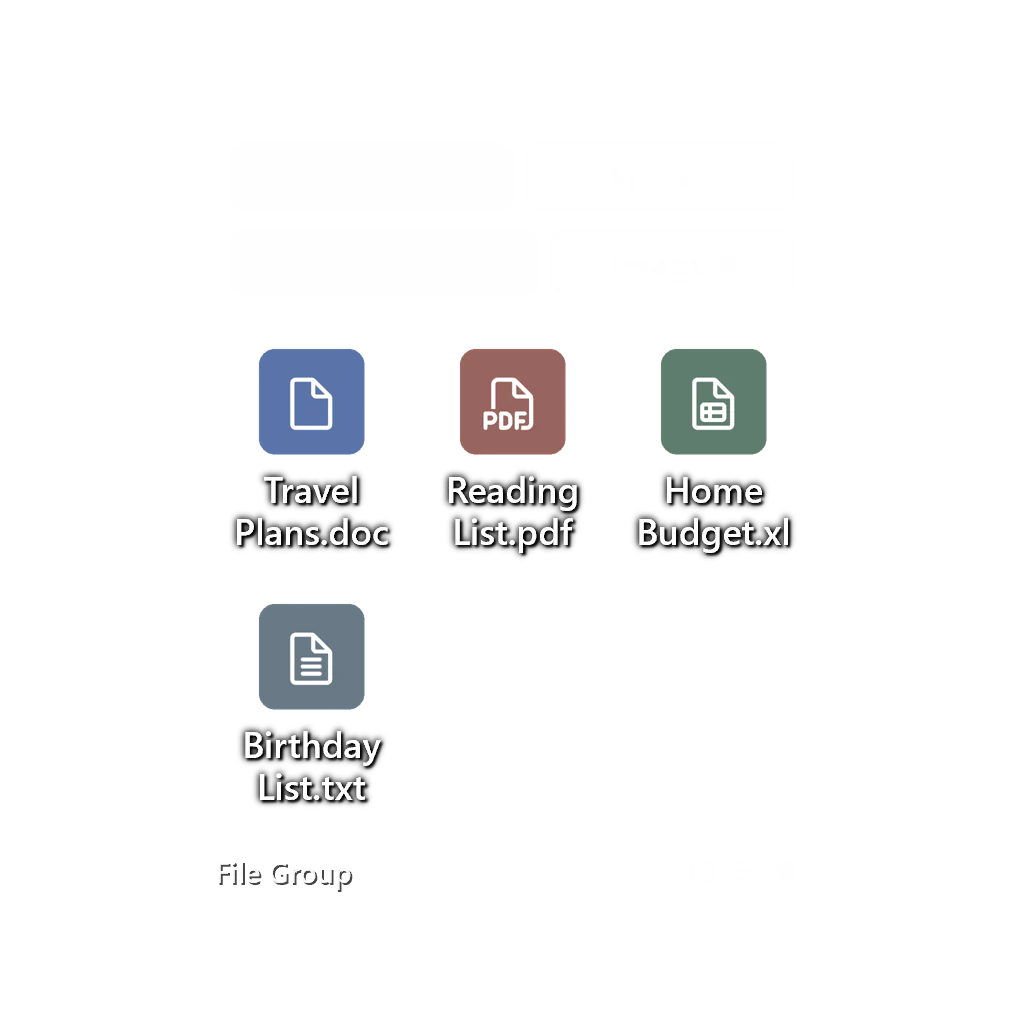
Combine desktop categories and multiple mapped folders in one component, then switch quickly by source or category tabs.
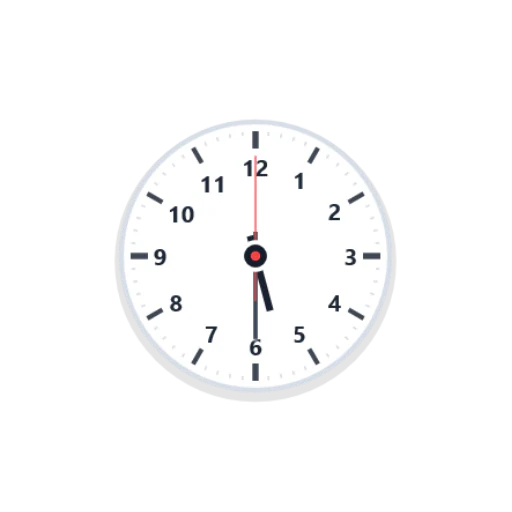
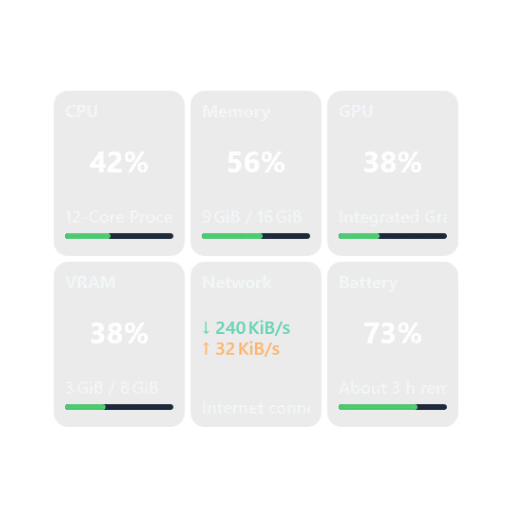
SnowDesktop includes analog and digital clocks, a monthly calendar, schedules, reminders, system monitoring, media controls, notes, a Pomodoro timer, an RSS reader, quick launchers, and more.
The widget platform supports Lua extensions and manages widget package installation, activation, deactivation, updates, rollbacks, and offline management. Choose existing widgets or build new desktop tools for your own workflow.
Explore Steam WorkshopEach monitor can have its own pages and grid layout. Adjust row and column counts, icon spacing, and widget positions, then continue managing existing pages when the connected display setup changes.
Dock can attach to any edge of the screen, or appear as a floating Dock only when needed. Add apps, folder stacks, and collections; see running programs; and use window previews to activate, minimize, or close windows.
Quick Navigation searches desktop items, applications, and Everything file results, reducing time spent moving between folders and windows.
Configure light or dark themes, widget styles, Dock appearance, glass or acrylic backgrounds, and a dynamic taskbar.
Replace the Windows system taskbar background and content theme with the Windows default, fully transparent, dark, light, glass, acrylic, or a custom appearance. Rules can switch the style when a visible or maximized window is present or when a taskbar system panel opens; each monitor is evaluated separately.
Layouts, settings, widget packages, and widget data can all be backed up and restored, or migrated between installed, portable, and custom data-directory setups.